Training content sometimes needs to be changed and updated more often than we may care to admit. If that training is shared across multiple LMSs , this leads to hours, days and weeks of admin work searching for all the places where the course is located. After taking time to make the updates, you then need to go back into all the LMSs and learning tools and reassign all of the courses. If you’ve run into this problem, you may be asking yourself how you can remotely manage and update a course version across multiple LMSs.
There’s a simpler way. Using Content Controller or SCORM Cloud you can easily update even the smallest of changes in a course remotely in only a few steps, no LMS admin work required.
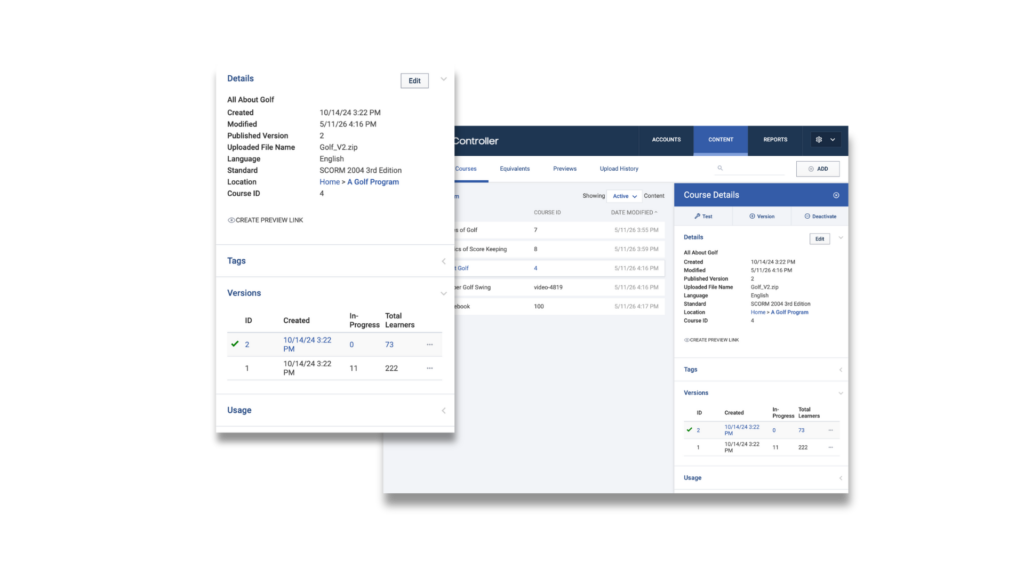
How to update courses in Content Controller
- Be sure the course is in Content Controller and shared to an LMS via Dispatch package.
- Click the “Version” button in the course’s detail panel.
- Upload a new .zip package in the same standard as the original version of the course.
- After import, test the changes by launching the new version in the sandbox environment.
- Once testing is complete, publish the version to make it immediately available to learners.
How to manage updating versions with learners in progress in Content Controller.
Many times when you update a course, you’ll have learners either in the middle of taking it or who will come back to complete it later. Content Controller has two simple options to handle learners who are still in progress.
- Restart – When selected, learners will restart the course with the new version and lose previous progress (for high-impact changes or corrections to the course material).
- Maintain Progress – This option will let them continue on the version they started (good for low-impact corrections, like fixing typos or replacing images).
How to update courses in SCORM Cloud
- Log in to your SCORM Cloud account at cloud.scorm.com.
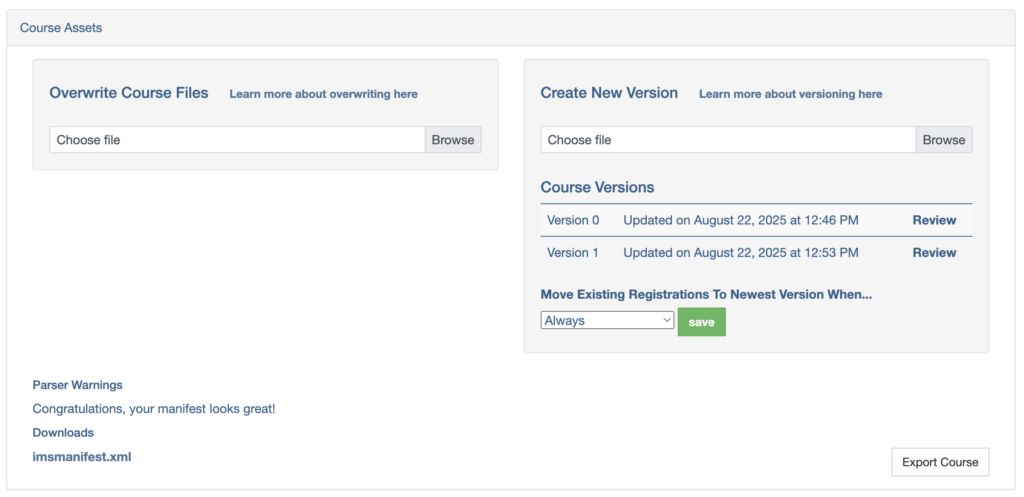
- Choose the imported course you want to update from your library.
- Click ‘Choose File’ under ‘Create New Version’.
- Select your course and click ‘Open’.
- *Please note, you’re not able to revert to a previous version of a course. You’ll need to re-import the previous version and update it again.
- After uploading the new version, you can feel free to test in the sandbox by clicking “Review”.
- Click ‘Save’.
*If you only need to switch out specific assets without making structural changes to the course, you can look into updating your course via FTP.
How to manage updating versions with learners in progress in SCORM Cloud.
If learners are still taking a course while you’re updating a version, SCORM Cloud has a few ways to handle that situation.
- Choose when to move existing registrations to the latest version from the drop-down menu. Options include never, when not complete, when completed and more.
- It’s important to note that any progress against the previous version will be lost if moving existing registrations to the new version.
- If you do not want to lose that progress, select the “Never” option. Existing registrations will continue to access the old version and new registrations will see the new version.
How-to remotely manage and update course versions in multiple LMSs
Start managing course updates and versions at scale
Remotely managing and updating course versions in multiple LMSs via SCORM Cloud and/or Content Controller is a breeze compared to doing it manually. You can start testing these tools out today with SCORM Cloud’s free trial or reach out below to learn more about how Content Controller can help manage updates at scale.
Interested in trying it yourself?
Reach out to our team to learn more about Content Controller and SCORM Cloud, and how they manage content versions.